Standings, reports and a backup you can recover from
A standings sheet answers “who finished where?”. A backup answers “can I continue this tournament if I change devices?”. They serve different purposes. Here is how to leave a tournament with useful results and a recoverable event.
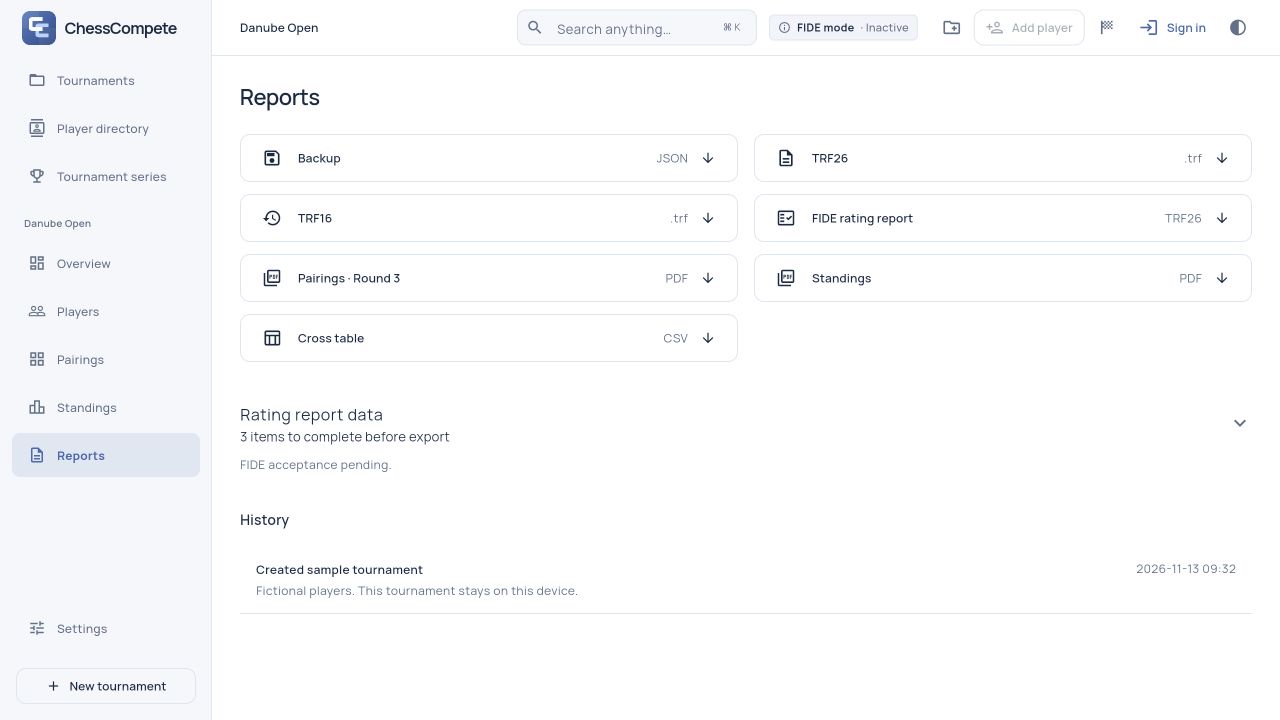
Use PDF for reading and printing, CSV for further work, and JSON to keep the tournament itself.
Read the standings in context
Open Standings and check the tournament name and round status. Points alone do not explain every position: tied players are ordered by the tie-breaks configured before the event. Select a player to inspect their tournament record when a score needs checking.
For an individual event, Cross table brings opponents, colours and results together. Its legend explains byes, forfeits, pending results and draft rounds. It is useful when a player asks how their total was reached, or when you need to compare the record with result slips.
Do not present an unfinished round as a final result. Once all planned rounds are published and complete, use Complete tournament in Pairings before creating the final report. The exported status distinguishes a finished event from work still in progress.
Choose the file for the job
- PDF: use Save PDF in Pairings or Standings for a readable sheet. Use Print to open the system print dialog. Reports also offers PDFs for the latest pairing round and current standings.
- CSV: export standings from Reports when you need to work with the results in a spreadsheet. Cross table also has its own Save CSV action. These files are useful extracts, not full tournament backups.
- JSON: select Reports → Backup to save the event as a .chesscompete.json file. Keep this when you need to restore the tournament.
Cross-table exports include the full tournament even if you have an active player search. Check the downloaded file and its destination before leaving the venue. A printed sheet is useful on the wall; a file saved only on the tournament laptop is still dependent on that laptop.
Prepare for offline work before you need it
Load the web app online first and allow its initial download to finish. Sign-in, subscription activation and synchronization need a connection. An already activated, ongoing event can continue locally with supported pairings and result entry when the connection drops.
Rehearse this on the device and browser you will use: open the event, save a backup, briefly disconnect and check that you can still reach the required views. Keep the same browser profile and site address. Local browser storage belongs to that browser and origin.
Do not clear site data to solve an update problem. Private browsing, storage cleanup or switching devices can leave you without the local event. When App update ready appears, save open forms and follow Review update; use Later if it is not a good moment to restart.
Keep a separate recovery copy
Synchronization is an explicit action. In Settings, connect your account and choose Sync now when online. If a conflict appears, inspect the versions; keeping both preserves the alternatives for review. Do not assume that local saves have already reached another device.
Before moving to a different device, export a JSON backup and store a copy somewhere you can reach independently. Use the tournament import action to open it, then check the name, roster and latest round. Imported real events need a valid start entitlement before running further rounds.
A practical closing routine is: verify the last results, complete the event, save the final PDF, export CSV if needed, save JSON, then synchronize when connected. Give the PDF to participants and retain the JSON for recovery. Check a backup before relying on it.